User and Permissions
用户账户管理基础
- 计算机通常有多个用户账户,用户之间的数据是隔离的,互不干扰。
- 用户分为标准用户和管理员,标准用户权限受限,管理员拥有完全控制权。
管理员的职责与权限
- 管理员可以添加、删除用户,安装软件,修改系统设置。
- 公共计算机的管理员负责维护机器,防止普通用户随意安装软件或更改设置。
用户组与权限管理
- 用户被分配到不同的组,组内用户拥有相似的权限。
- 管理员可以根据用户组设置不同的访问权限和限制,例如为儿童组添加安全限制。
计算机管理工具概述
- 计算机管理工具是Windows中一个集成的管理界面,包含系统工具、存储和服务应用等多个模块。
- 该工具适用于本地计算机管理,也支持在企业环境中通过域管理多台计算机和用户。
系统工具模块功能
- 任务计划程序允许设置定时运行的任务,如定时关机。
- 事件查看器存储系统日志,便于故障排查。
- 共享文件夹显示机器上用户共享的文件夹。
- 本地用户和组用于管理用户账户和用户组。
- 性能监视器显示CPU和内存等资源使用情况。
- 设备管理器管理计算机硬件设备。
用户和组管理细节
- 本地用户和组中包含内置账户如Guest和Administrator,管理员账户默认禁用以保障安全。
- 用户账户属性包括密码策略(如强制下次登录更改密码)、账户状态(启用、禁用、锁定)等。
- 用户所属的组决定其权限,管理员组成员可通过用户账户控制(UAC)获得管理权限。
- 组菜单显示所有组及其成员,方便查看和管理权限分配。
使用PowerShell查看本地用户和组
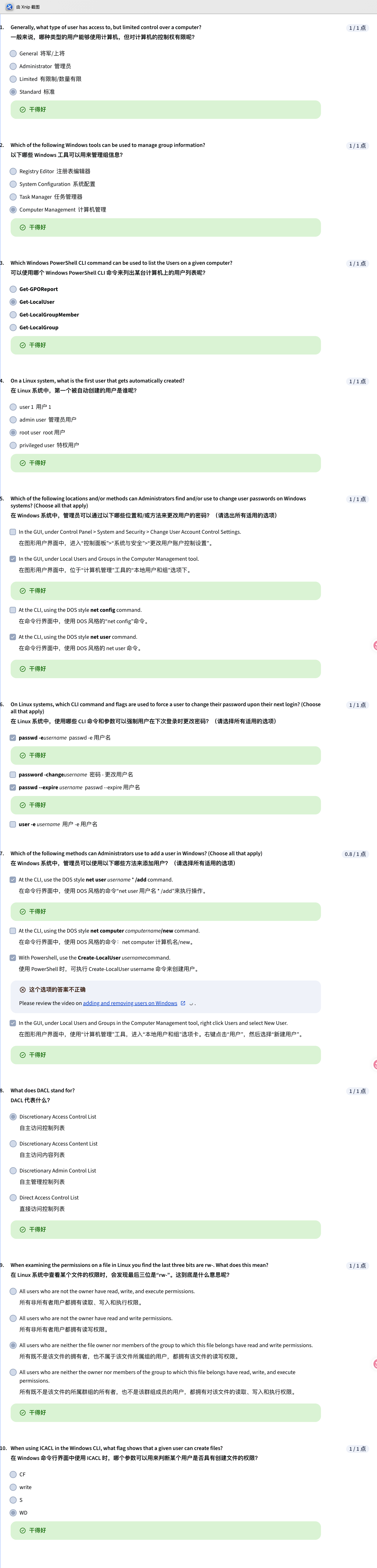
- 使用命令Get-LocalUser可以快速列出计算机上的所有本地用户账户,避免手动通过图形界面逐个检查。
- 使用命令Get-LocalGroup可以查看本地计算机上的所有用户组,包括内置组。
管理管理员组成员
- 管理员组(administrators group)控制着谁拥有计算机的管理权限,成员可以对系统进行任何更改。
- 使用Get-LocalGroupMember命令查看管理员组成员,确保只有授权用户在该组中。
注意事项与背景
- 这些PowerShell命令需要PowerShell 5.1或更高版本才能运行。
- 在大型组织中,通常使用Active Directory集中管理用户账户,而不是单独管理本地账户。
Linux用户和权限管理
- Linux中有标准用户、管理员和特殊的Root用户,Root用户是系统安装时自动创建的超级用户,拥有所有权限。
- Root用户类似于Windows的本地管理员,但建议避免长时间以Root身份登录,以防误操作导致系统损坏。
使用sudo和su命令
- 通过sudo命令可以以Root权限执行单个命令,类似Windows的UAC功能,安全且方便。
- su命令用于切换用户,默认切换到Root用户,但不建议一直使用Root账户操作。
查看用户和组信息
- /etc/group文件存储组信息,包括组名、组密码、组ID和组成员列表。
- /etc/passwd文件存储用户信息,包括用户名、加密密码存储位置和用户ID,系统中有许多非人类用户用于运行进程。
通过命令行更改密码
- 使用旧式的Net命令(net user 用户名 密码)更改本地密码,推荐用星号(*)代替密码以避免密码泄露。
- 使用参数/net user 用户名 /logonpasswordchange;yes 强制用户下次登录时更改密码,避免管理员知道用户密码。
更改密码的命令
- 使用命令passwd(password)来更改用户密码。
- 设置密码时,密码会被安全地加密后存储在/etc/shadow文件中。
密码存储与安全
- /etc/shadow文件只能由root用户读取,防止密码被未授权访问。
- 即使访问了该文件,密码也无法被轻易解密。
强制用户更改密码
- 管理员可以使用passwd命令的-E(expire)选项强制用户在下次登录时更改密码。
- 这类似于Windows系统中强制用户更改密码的功能。
添加和删除本地用户(图形界面)
- 通过计算机管理工具中的“本地用户和组”右键选择“新用户”来创建用户,设置用户名、全名和密码,并勾选“用户下次登录时必须更改密码”以保证安全。
- 删除用户时右键选择“删除”,系统会提示确认,删除后即使使用相同用户名也无法访问原有资源。
添加和删除本地用户(命令行)
- 使用net user命令添加用户,参数“/add”用于创建账户,使用“*”提示输入密码。
- 通过“/logonpasswordchange:yes”参数强制用户首次登录时更改密码,提升账户安全。
删除用户命令行操作
- 使用“net user 用户名 /delete”命令删除用户。
- 也可以使用PowerShell命令“Remove-LocalUser”删除用户账户,两者效果相同。 命令行操作模式
- 添加和删除用户命令遵循相似的参数模式,掌握这些模式有助于快速学习和记忆其他命令。
添加和配置用户
- 使用命令 sudo useradd juan 可以添加一个新用户,系统会为该用户创建基本配置和主目录。
- 可以结合密码命令设置用户首次登录时必须更改密码,增强安全性。
删除用户
- 使用命令 sudo userdelete juan 可以删除指定用户,删除后该用户将不再存在于系统中。
文件权限基础
- 文件权限用于控制谁可以访问文件和目录,以及他们可以执行的操作,类似于现实生活中对资源的访问控制。
- Windows使用访问控制列表(ACL)来管理权限,主要包括自主访问控制列表(DACL)和系统访问控制列表(SACL),其中DACL定义了谁可以访问文件及其权限。
权限查看与继承
- 可以通过Windows资源管理器的属性安全标签页查看和设置权限,也可以使用命令行工具icacls查看和修改ACL。
- 权限可以继承,文件夹中的新文件和子文件夹会自动继承父目录的权限设置,方便权限管理。
Linux文件权限基础
- Linux中有三种基本权限:读取(read)、写入(write)和执行(execute)。
- 这些权限控制谁可以查看、修改或执行文件或文件夹。
权限的表示方式
- 使用ls命令加长格式(ls -l)可以查看文件权限,权限由10个字符组成。
- 第一个字符表示文件类型(“-”表示普通文件,“d”表示目录),后面9个字符分为三组,每组三个字符分别表示所有者、所属组和其他用户的权限。
权限的具体含义
- “r”表示可读,“w”表示可写,“x”表示可执行,“-”表示对应权限未启用。
- 例如,权限字符串“-rwxrw-r--”表示所有者有读、写、执行权限,组用户有读、写权限,其他用户只有读权限。
Windows文件夹权限修改
- 通过文件夹属性中的“安全”标签页,可以编辑文件夹的权限,添加用户或用户组。
- 选择用户后,可以为其分配允许的权限(如修改权限)或拒绝权限,拒绝权限优先级高于允许权限。
命令行工具iCacls的使用
- iCacls命令用于在命令行中管理文件和文件夹权限,PowerShell中参数需用单引号包裹以避免解析错误。
- 通过iCacls可以授予用户或用户组特定权限,如授予“everyone”组读取权限,或移除权限。
权限继承与用户组
- 新创建的文件和文件夹会继承父文件夹的权限设置。
- “everyone”组包含所有用户,包括访客用户;“authenticated users”组只包含有密码的用户,不包括访客,适合更严格的访问控制。
文件权限修改
- 使用chmod命令改变文件权限,权限分为所有者(u)、所属组(g)和其他用户(o)三类。
- 权限可以用符号方式(r读,w写,x执行)加减(+或-)来添加或移除,也可以用数字方式(4读,2写,1执行)快速设置。
数字权限表示法
- 数字权限通过将读、写、执行的值相加来表示,例如7代表读写执行(4+2+1),5代表读执行(4+1)。
- 使用数字格式可以一次性设置所有者、组和其他用户的权限,如chmod 754 文件名。
更改文件所有者和组
- 使用chown命令更改文件所有者。
- 使用chgrp命令更改文件所属组。
特殊权限与简单权限
- 简单权限是由多个特殊权限组合而成的,例如“读取”权限包含读取数据、读取属性等多个细化权限。
- 在权限设置的高级选项中,可以查看和修改文件或文件夹的所有特殊权限。
使用命令行查看和设置权限
- 使用icacls命令可以查看文件或文件夹的特殊权限。
- 通过命令行示例展示了如何为系统临时文件夹设置权限,使所有用户可以创建文件和文件夹,但不能删除他人的文件。
权限继承与CREATOR OWNER
- 权限可以继承自父文件夹,某些权限标记(如IO)表示仅继承但不应用于当前容器。
- CREATOR OWNER是一个特殊用户,代表文件或文件夹的所有者,所有者对其拥有的文件具有完全控制权限。
特殊权限位的作用
- setuid位允许普通用户以文件所有者(通常是root)的权限运行程序,例如修改密码命令passwd。
- setgid位允许以文件所属组的权限运行程序,方便组内权限管理。
权限位的表示和设置
- setuid用符号S表示,数字表示法中用4作为前缀设置权限。
- setgid用符号S表示,数字表示法中用2作为前缀设置权限。
粘滞位(sticky bit)
- 粘滞位用于目录,允许所有用户写入但只有文件所有者或root能删除文件,如/tmp目录。
- 用符号t表示,数字表示法中用1作为前缀设置权限。
New terms and their definitions: Course 3 Module 2 ACL: Access Control Lists
Administrator: A user that has complete control over a machine
Biometric data: A way of protecting your accounts and information using biometric data such as facial recognition and fingerprint
Computer management: A tool that lets you manage a local or remote computer
DACL: Discretionary Access Control List
File permissions: A process for setting permissions for who has access to certain files
Full control: A user or group with full control that can do anything they want to files
Inherit only: A permission group that means that a DACL will be inherited, but not applied to a container
List folder contents: A command that will execute and list folder contents and is an alias for Read and Execute
Mobile device management: A system used to apply and enforce rules about how the device has to be configured and used
Modify: An umbrella permission that includes read and execute and write
Primary account: The initial account you made during setup
Read and execute permission: Permissions that grant you access to read the file that exists and execute it if its runnable
Read permission: Permissions that grant you access to read the file that exists
Root user: It is the first user that gets automatically created when we install a Linux OS and has all the privileges on the OS. Also called the super user. There's technically only one superuser or root account, but anyone that's granted access to use their powers can be called a superuser too
SACL’s: System Access Control List
Simple permissions: Special or specific permissions
Single sign on (SSO): An account that grants you access to multiple accounts without require constant entry of a password or username
Standard user: A user who is given access to the machine but has restricted access to do thing like install software or change certain setting
Windows domain: A network of computers and users that are added to a central database
Write permission: A permission that allows you to make changes to a file
Terms and their definitions from previous modules A
Absolute path: It is one that starts from the main directory
Alias: A nickname for common commands
Appending flags: A way to add the data of the file without erasing existing data
B
Bash: The language used to interact with the shell
C
CLI: Command line interpreter
Command line: A text interface program for a computer that inputs text commands and translates them to the operating system
E
Escape characters: A concept that means that the next character after the back tick should be treated literally
.exe: A file extension found in Windows for an executable file
G
Groups: A collection of users
GUI: A graphical user interface
H
Hidden files: A set of files that are not visible either to avoid alteration or simply because you don’t want someone to see them
Hot key: A keyboard shortcut that does a particular task
I
I/O Streams: An input stream handles data flowing into and out of a program
P
Parameter: A value that is associated with a command
Parent directory & child directories: A parent directory is a directory that houses all subsequent child directories
Paths: A main directory that branches off and holds other directories and files
Prompt: A prompt shows you which directory you’re currently in
R
Regular expression: A pattern matching language that describes words, phrases, or more complicated patterns; regular expressions are used to help you do advanced pattern based selection
Relative path: It is a path from your current directory
Root directory: A parent directory for all other directories in a file system
S
Shell: A shell is a command line interpreter for Linux
Standard error (stderr): A data stream that redirect the output of error messages in a different output stream. It works both in Linux and Windows
Standard In (stdin): A data stream in which the input that you provide through the keyboard goes to the standard in stream of the process that you're interacting with. It works both in Linux and Windows
Standard out (stdout): A data stream that when a process creates output, it adds data to the standard out stream, which flows out of the process. It works both in Linux and Windows
Stdin, stdout, stderr: Three data streams created when you launch a Linux command
Subdirectories: A directory below or at a deeper level in the directory hierarchy
T
Tab completion: A way to auto-complete a command or file names and directories
W
Wildcard: A character that is used to help select files based on a certain pattern
Windows Search service: A service that indexes files on your computer by looking through them on a schedule